This quickstart will cover:

Let’s get started!

1

Create your Account

Go to https://app.braingrid.ai and create an account.Give your organization a name and pick a username.
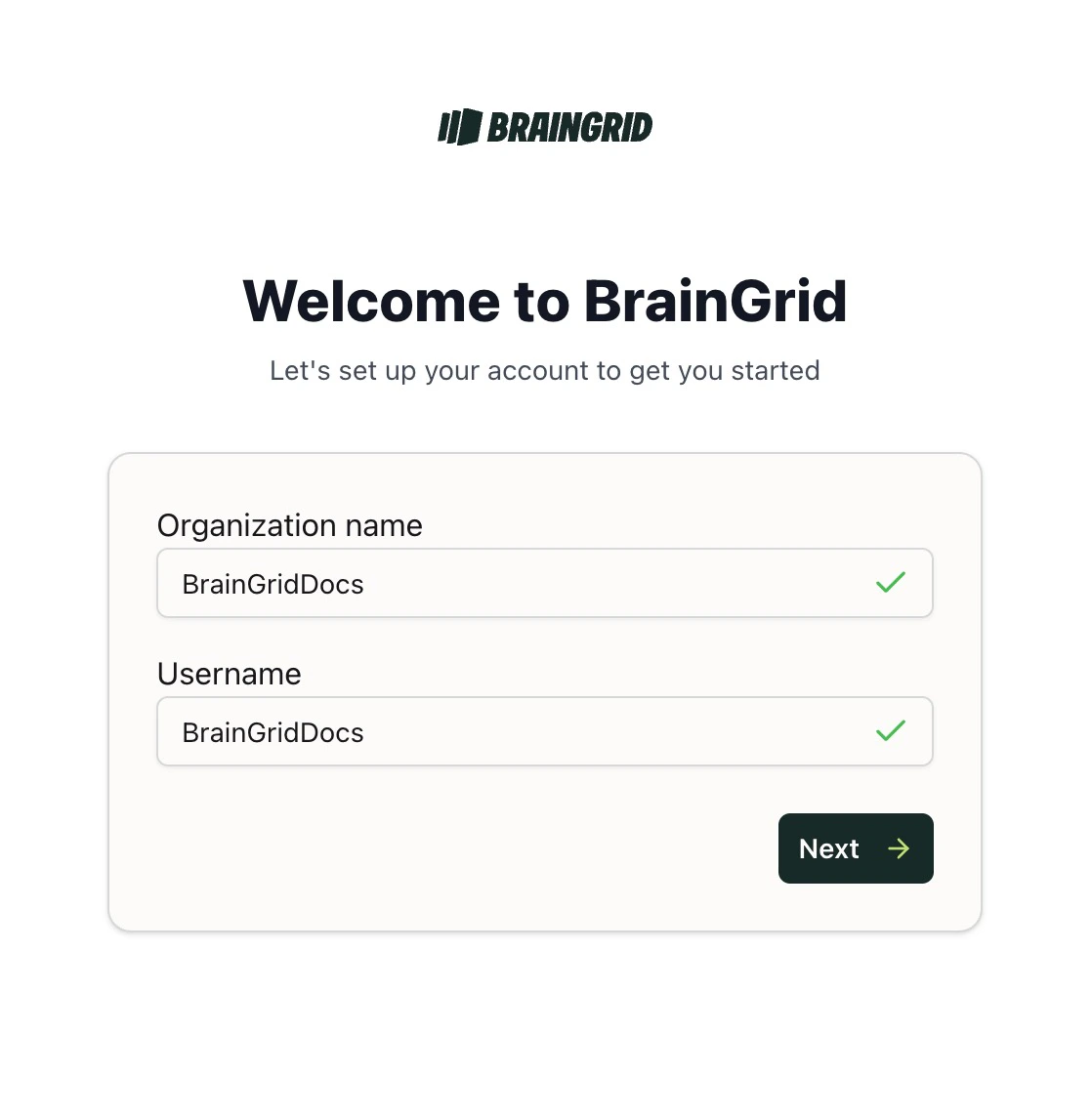
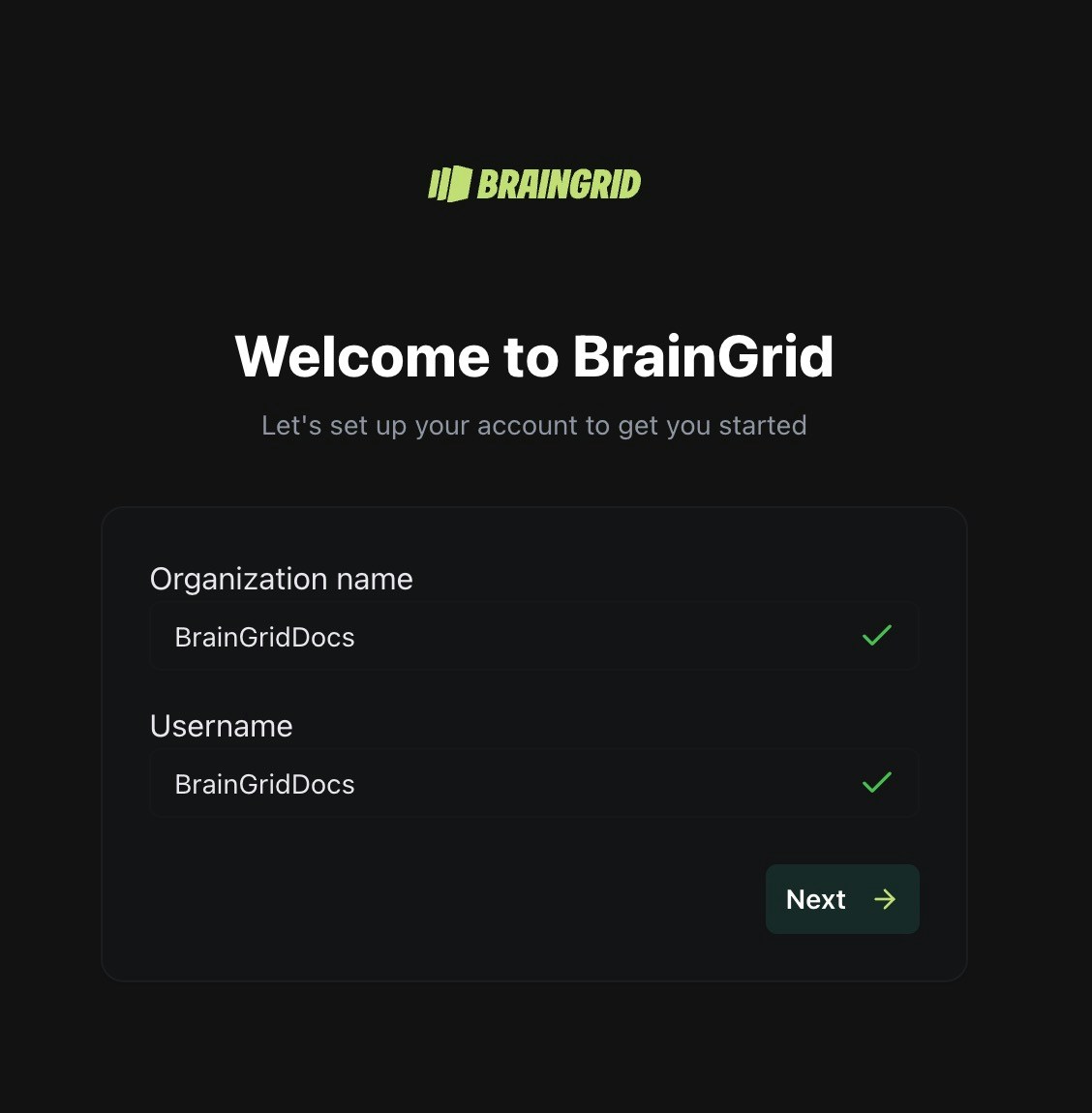
Creating your BrainGrid Account.
2

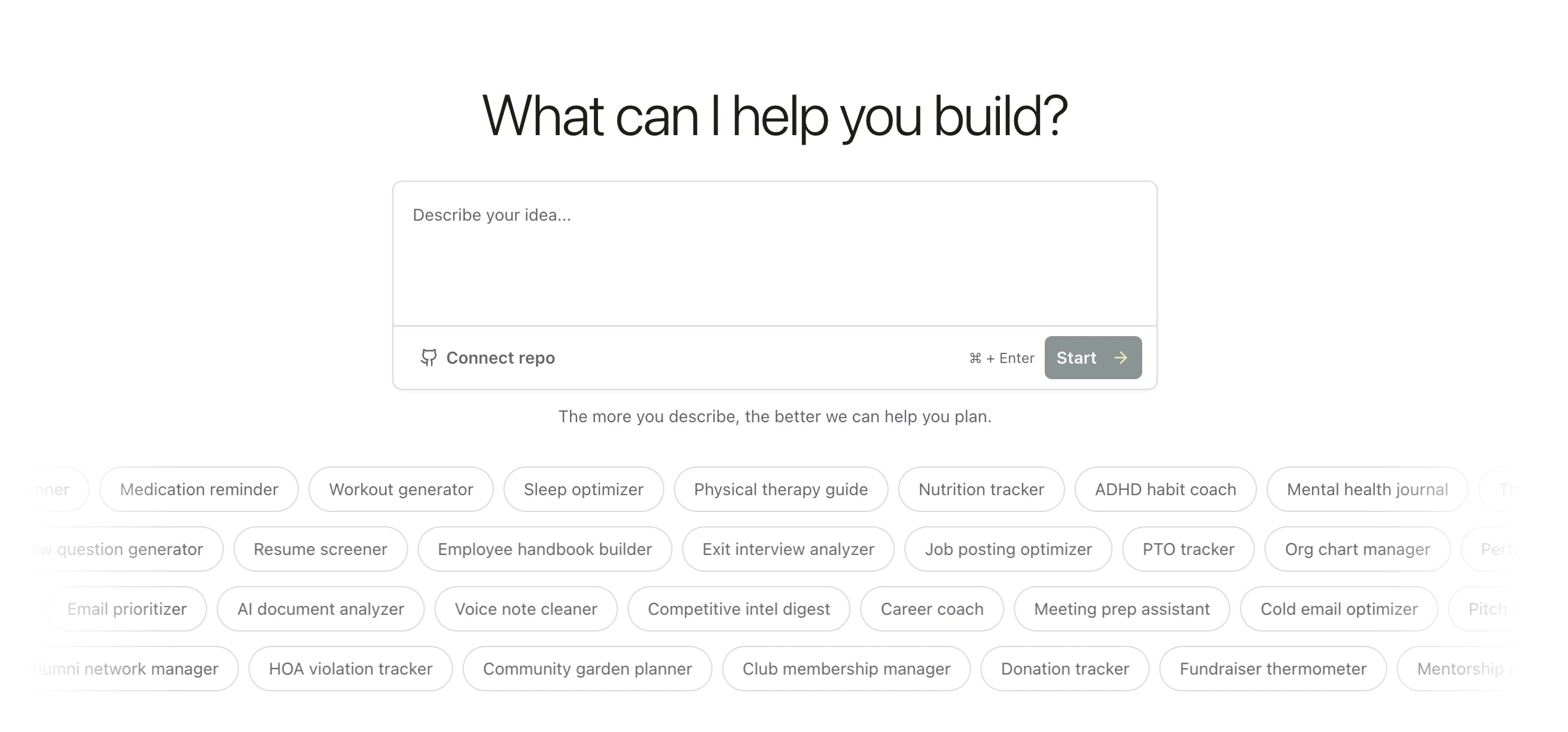
Start building with a prompt

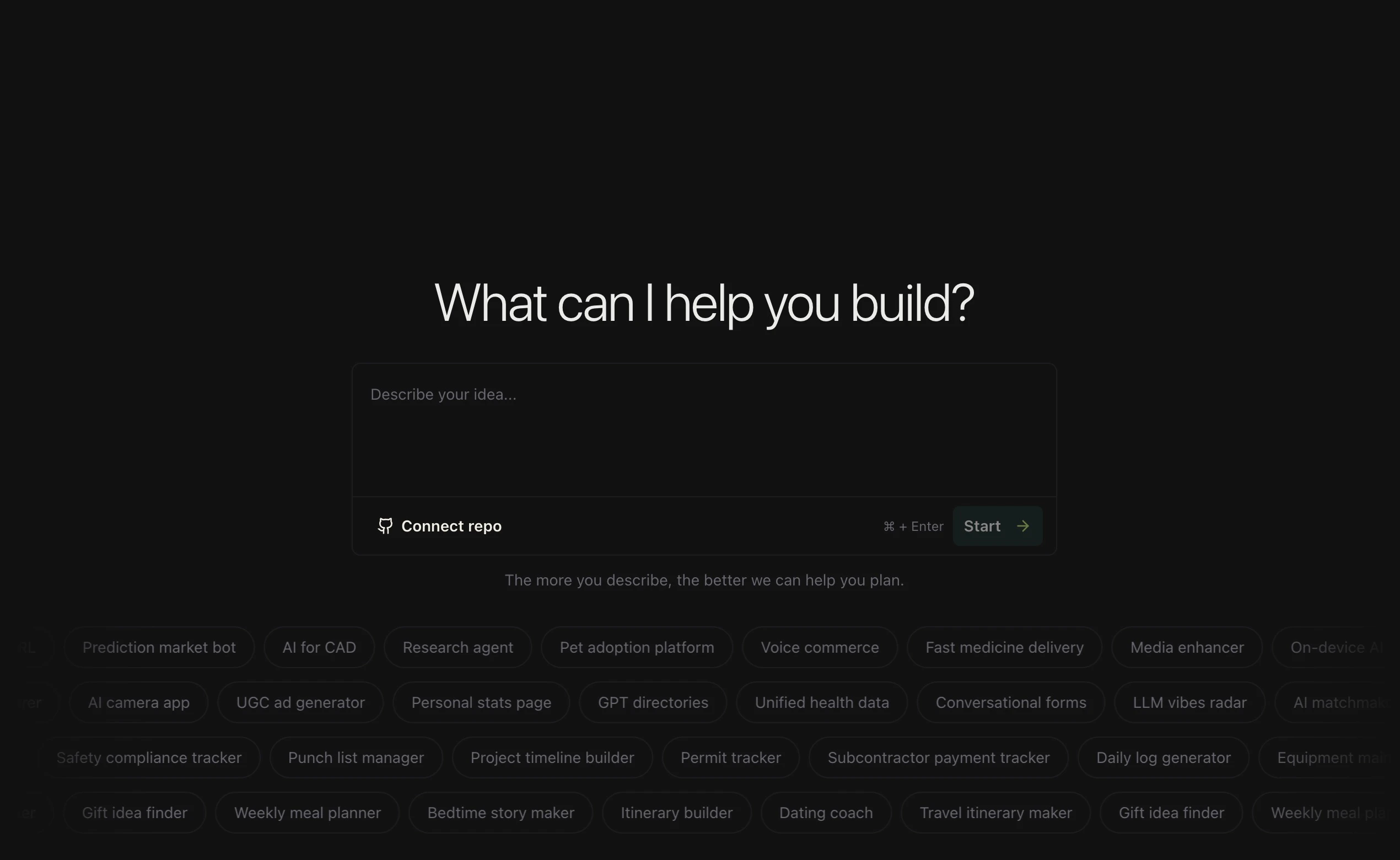
Start Building with a prompt.
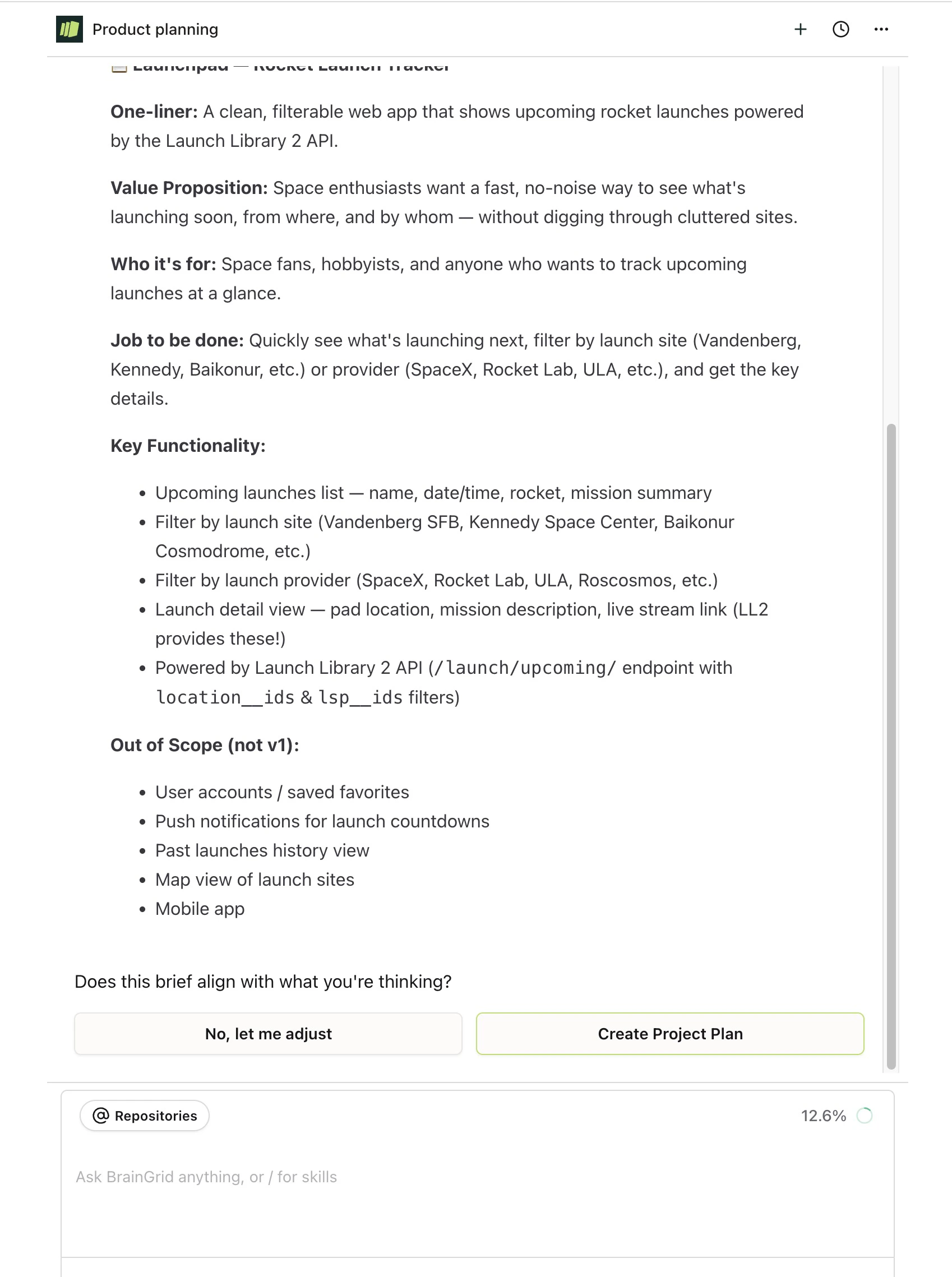
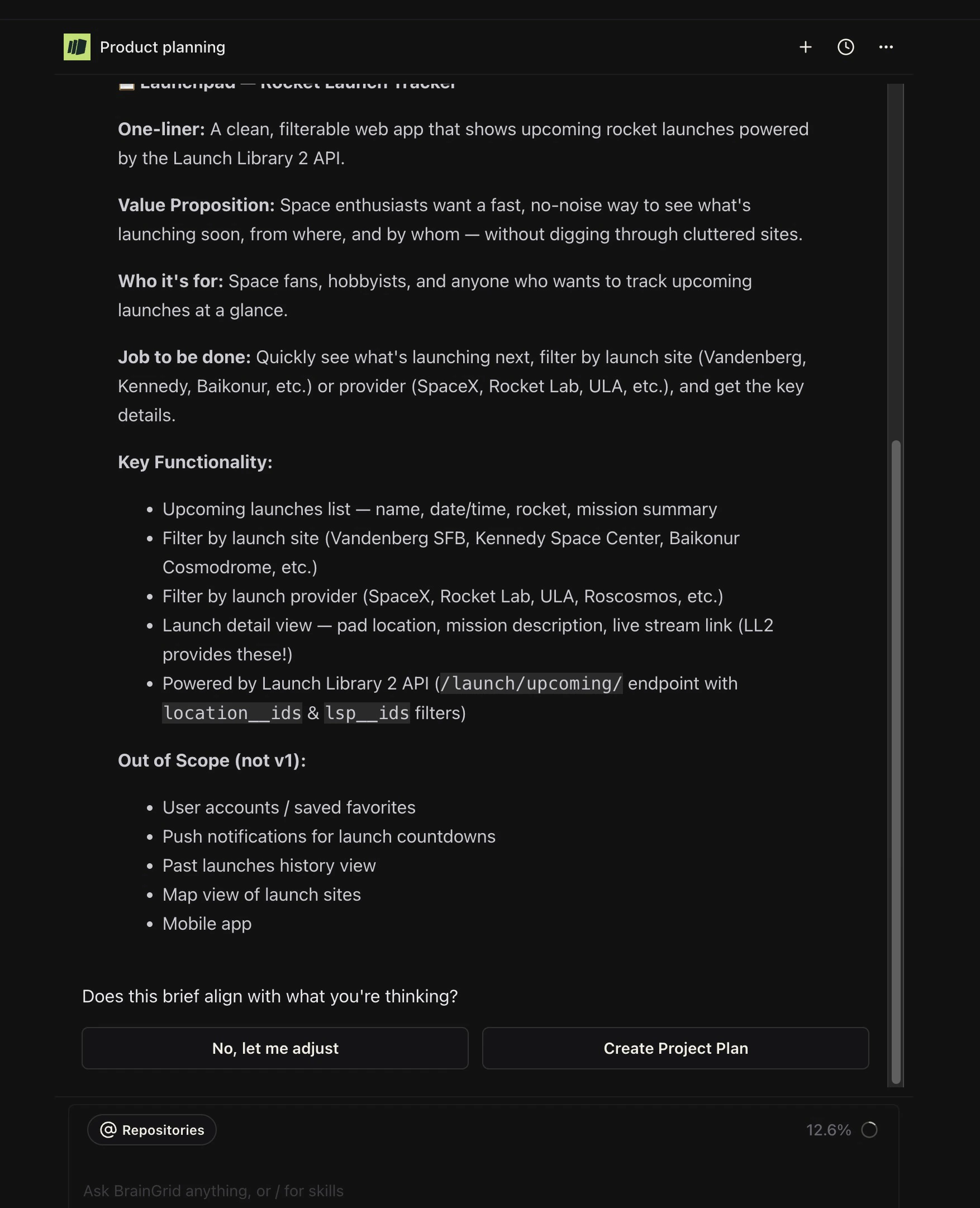
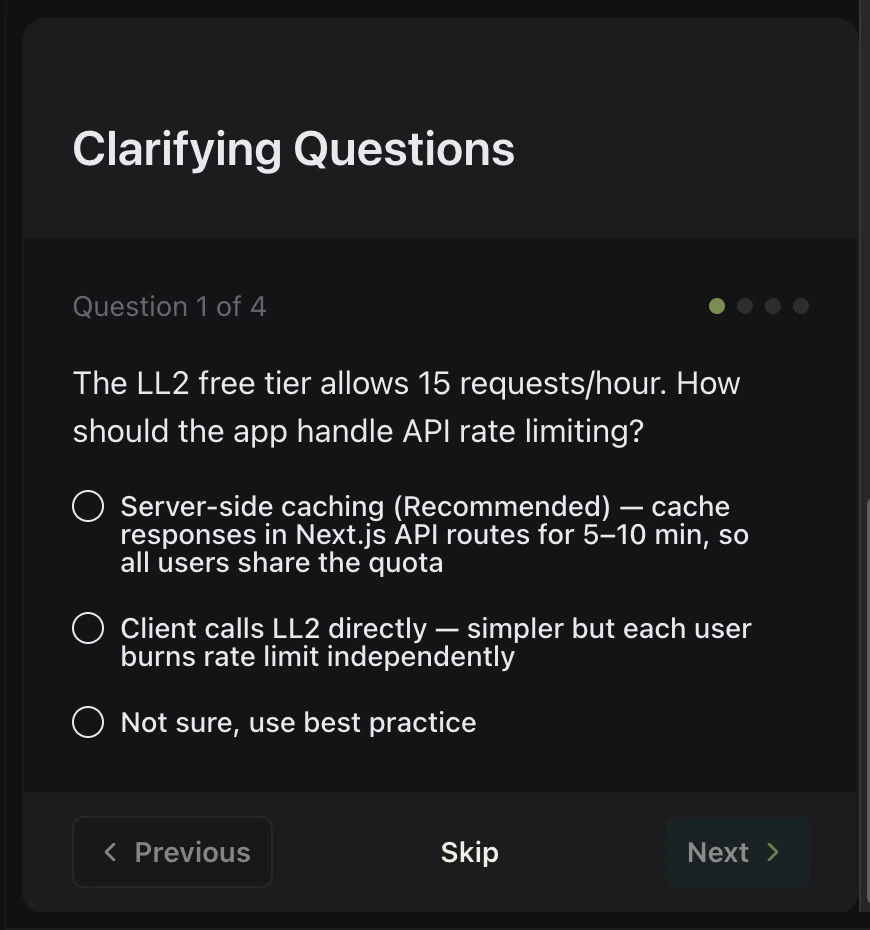
Now it is time to start building. Enter a prompt that describes what you are looking to build. Note that you can connect your prompt to a GitHub repository.If you have not yet connected your GitHub account to BrainGrid, there are detailed instructions.Once you enter your prompt that describes your idea, the agent will start thinking and analyzing the codebase (if it exists). It can come back with some clarifying questions to help it understand the requirement better, or ask you if you are comfortable with the plan proposed. Iterate with the agent until you are happy with the plan.
Examine the plan, and choose to accept it or not.
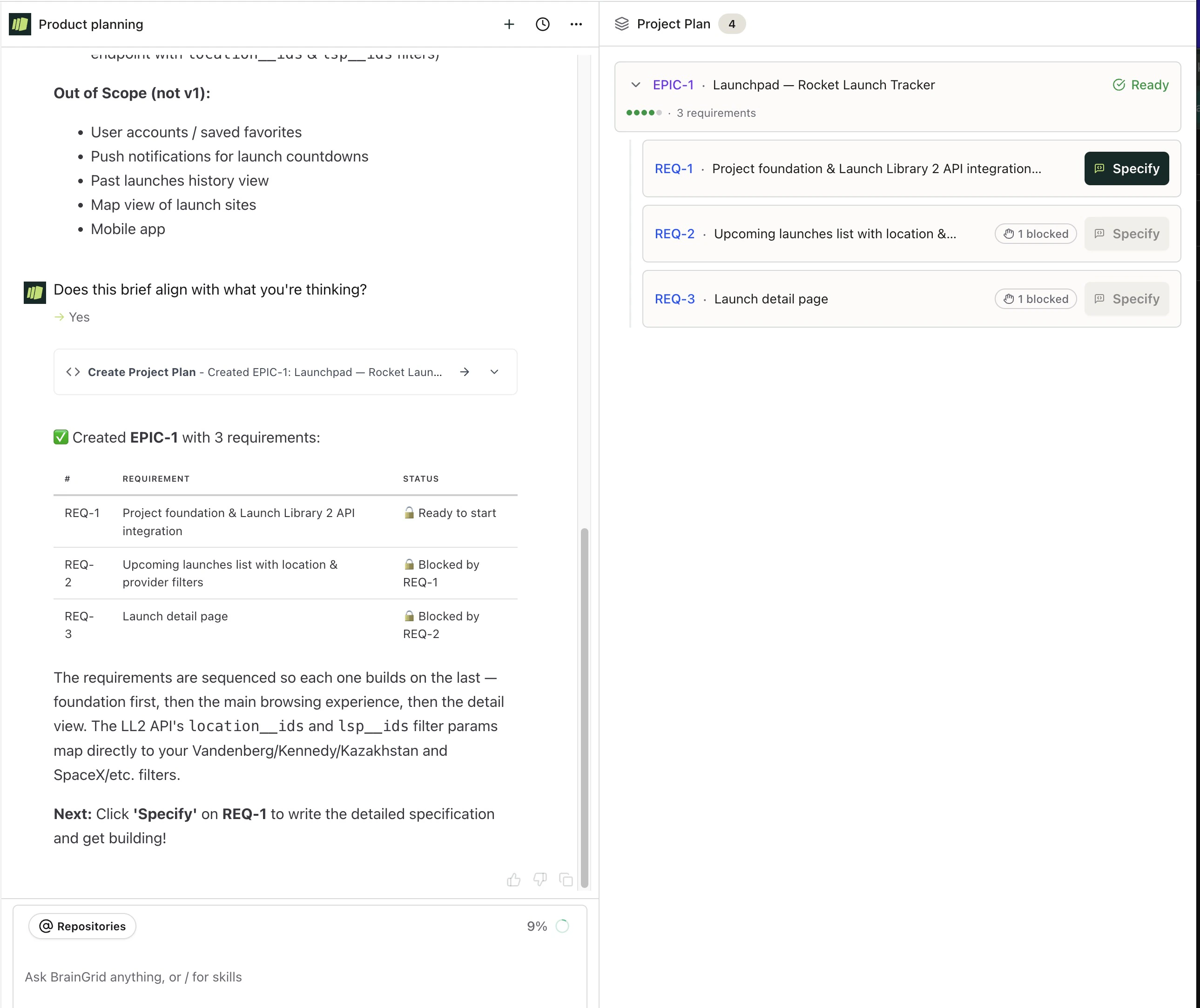
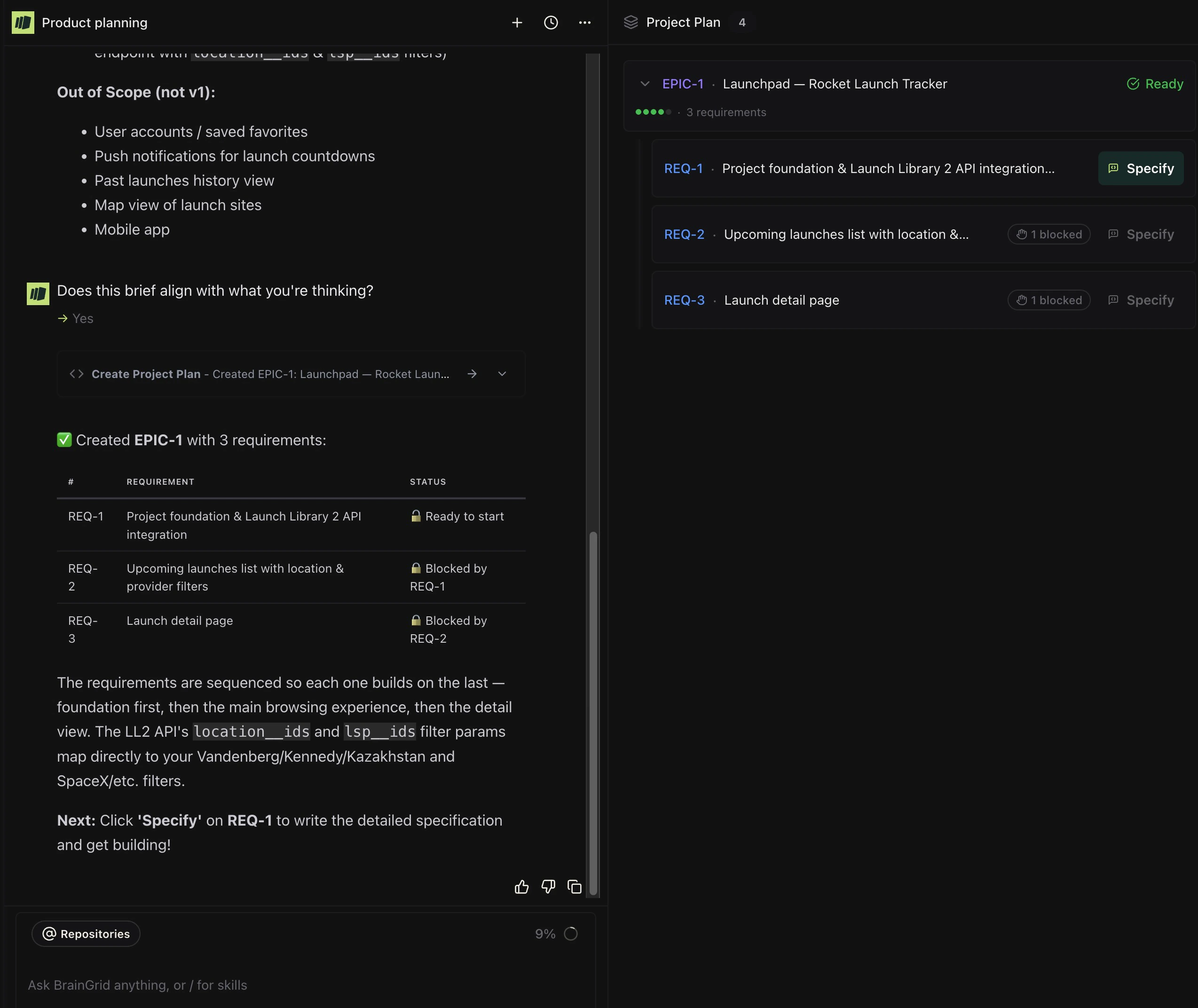
Once you accept the plan, BrainGrid will use the plan to create an EPIC user story. Several requirements are stubbed out that will be used to implement the plan.
Accepted plan becomes an epic user story with requirements stubbed out.
3

Specify the requirements

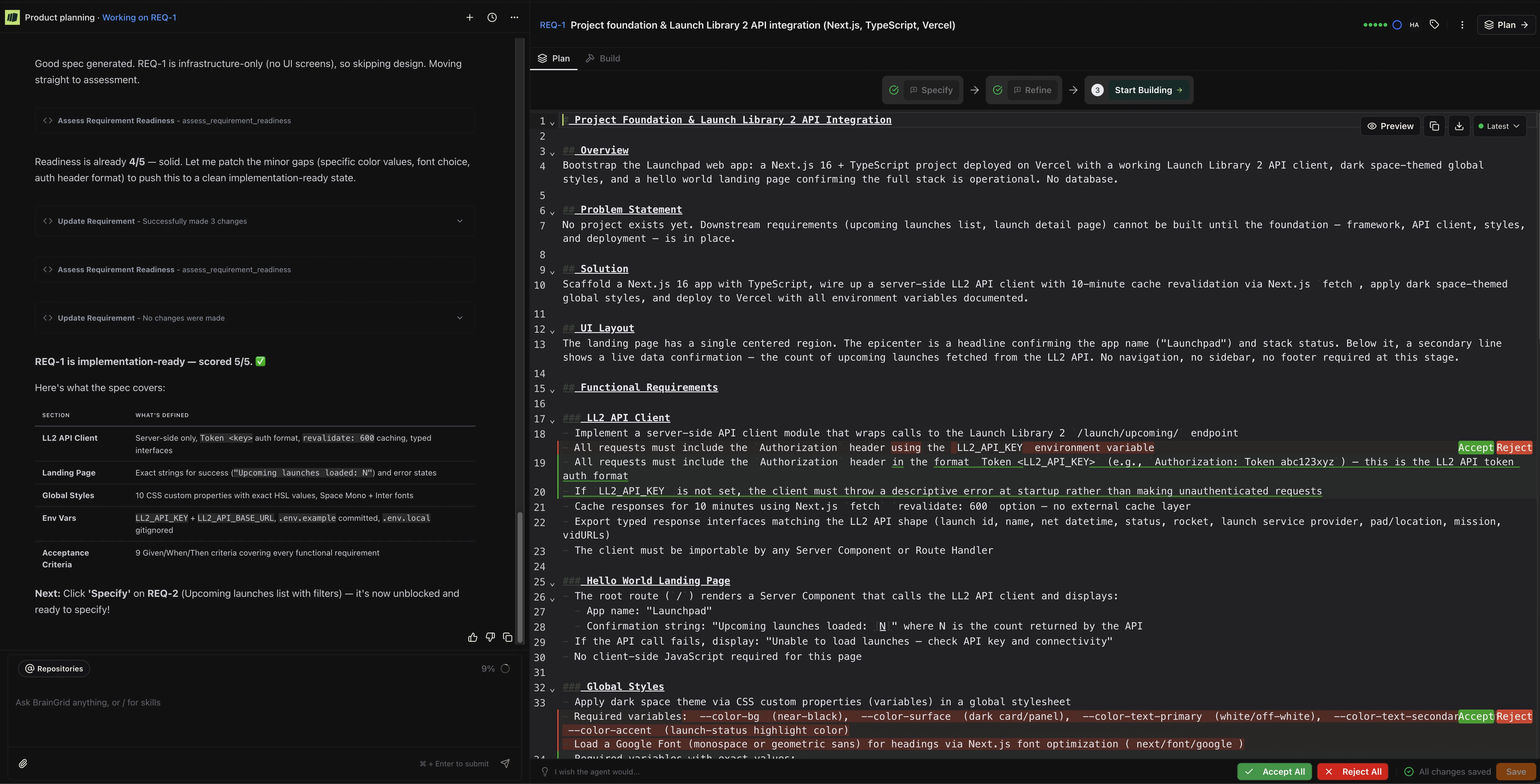
In the right frame of BrainGrid, the proposed requirements are listed. Click “Specify” to begin building the specifications around a requirement. BrainGrid will begin building the requirement. It may ask clarifying questions to refine and enhance the requirements.
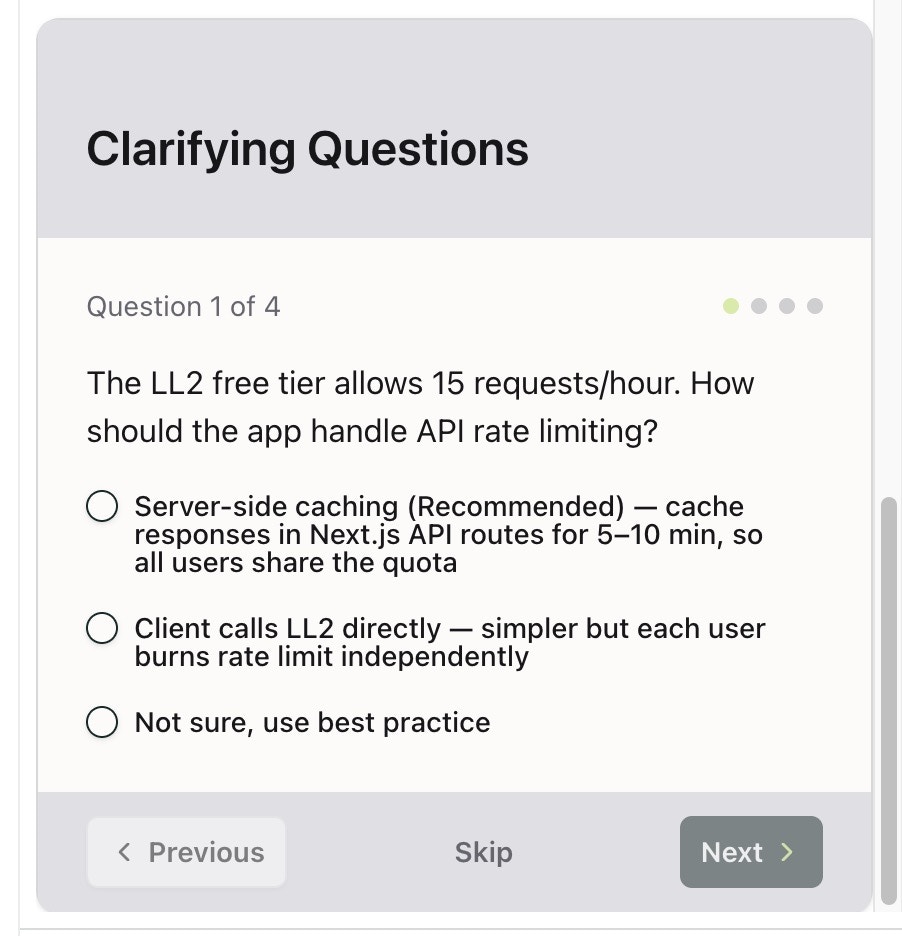
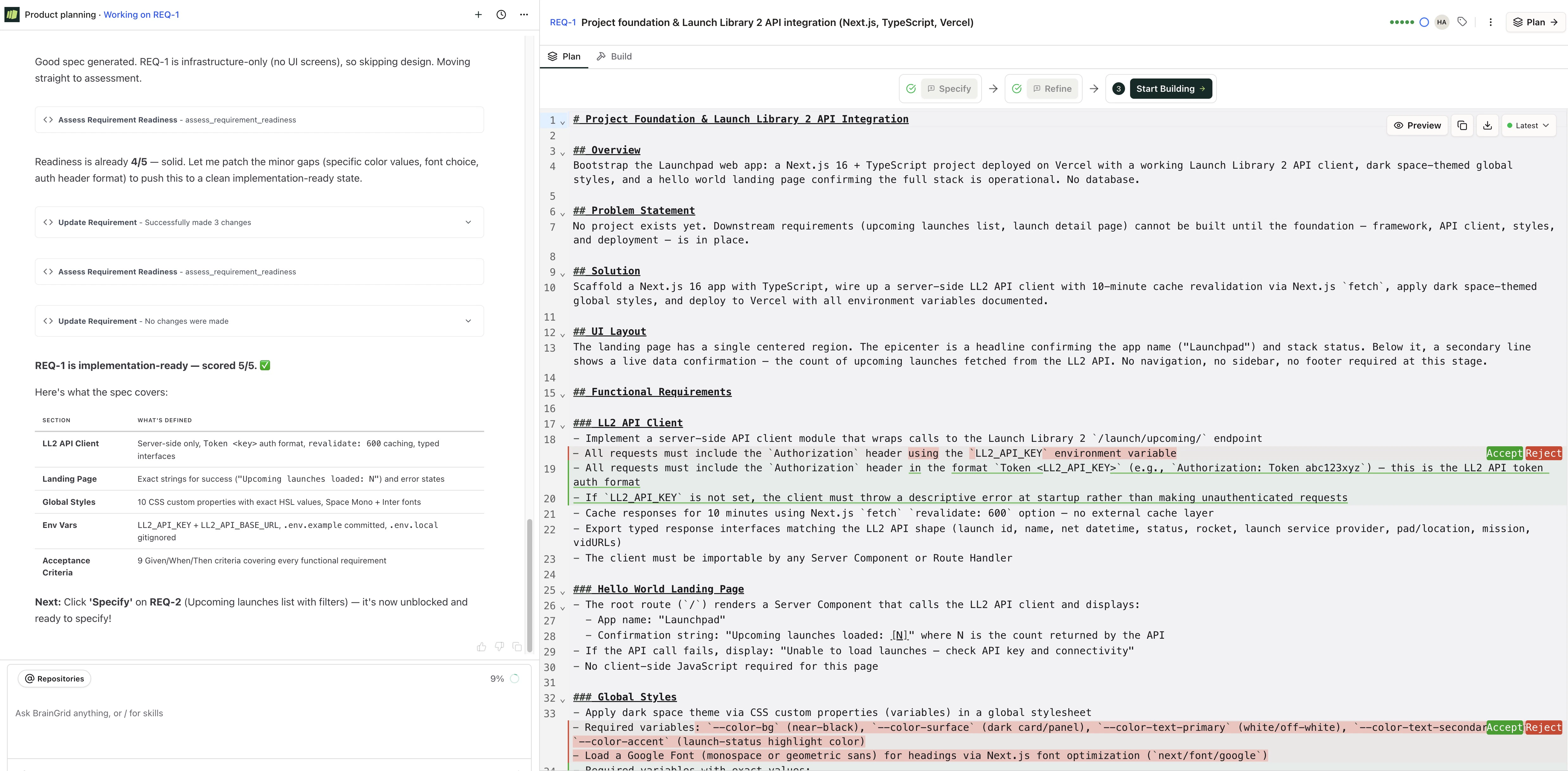
Refine the rough idea with AI into a detailed specification
Once completed, A full requirements document is created that outlines what will be built. You can ask the agent to make changes, clarify things, add or remove details (or you can edit the document manually.)
Refine the rough idea with AI into a detailed specification
We are now ready to build!
4

Install the BrainGrid CLI, and configure your agent

Before we can build locally, we need to install BrainGrid’s Command Line Interface (CLI).In the local directory of your repository:
npm install -g @braingrid/cli #install BrainGrid with NPM
braingrid login               #login to BrainGrid (a browser tab will open)
braingrid init                #initialize the BrainGrid project in your local repository.
If you have Claude Code or Cursor installed, you will be prompted to install the BrainGrid integration into those tools. (Claude code shown as an example):
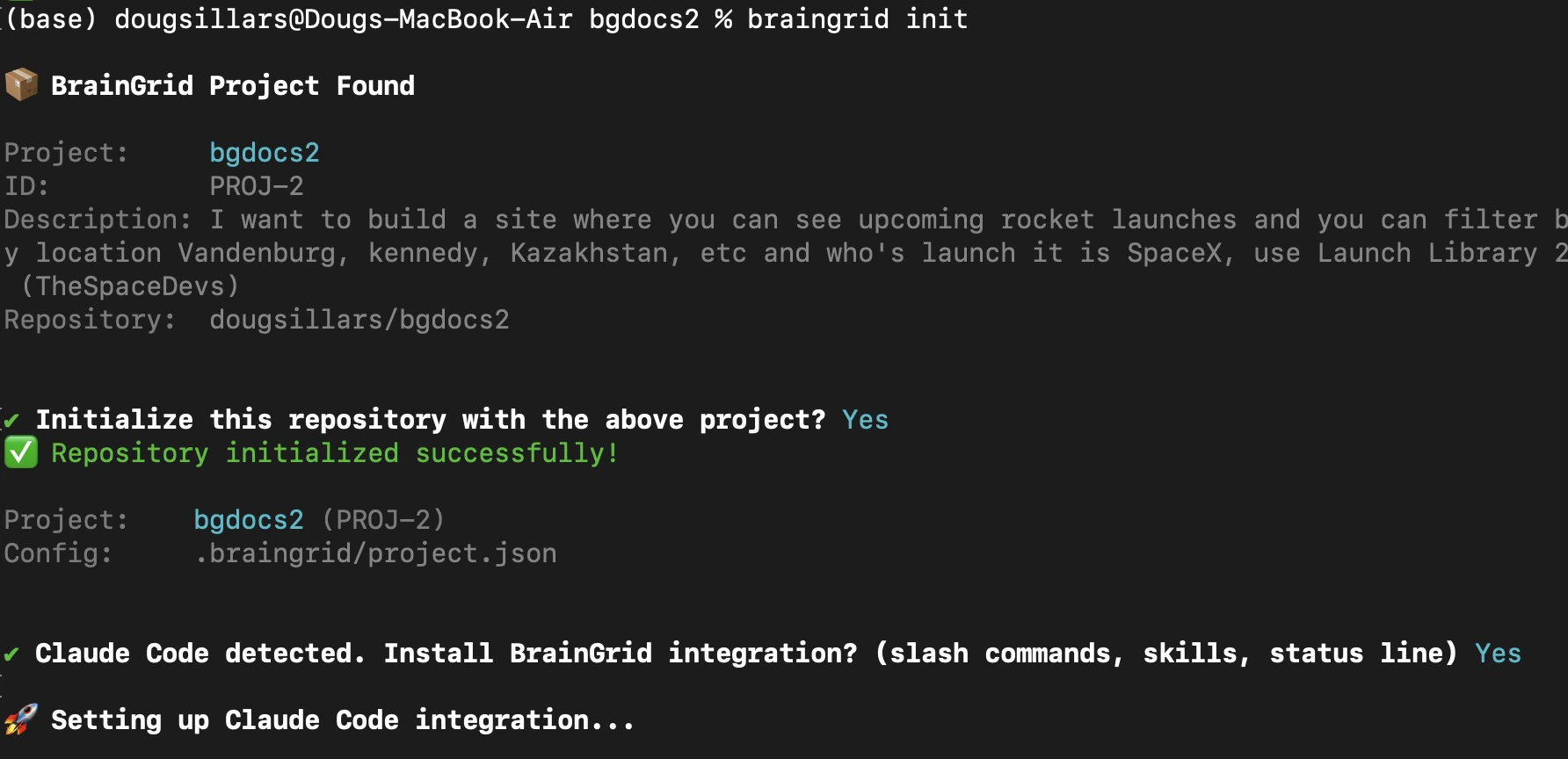
Initialize the BrainGrid CLI
Need more help? Check our detailed CLI installation guide.
5

Begin Building

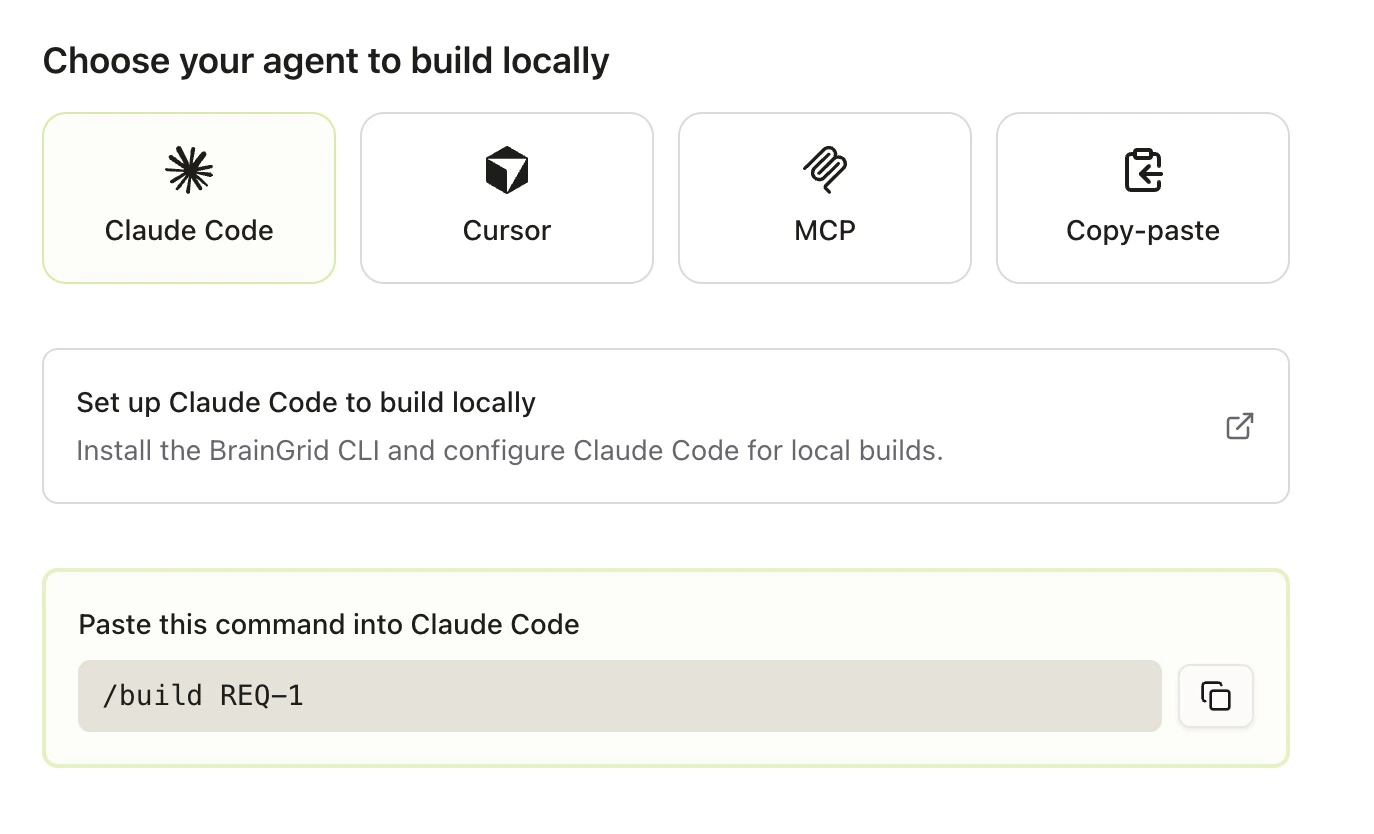
We are now ready to begin building. If you click the “Start Building” button, you will see detailed instructions for your AI Agent:
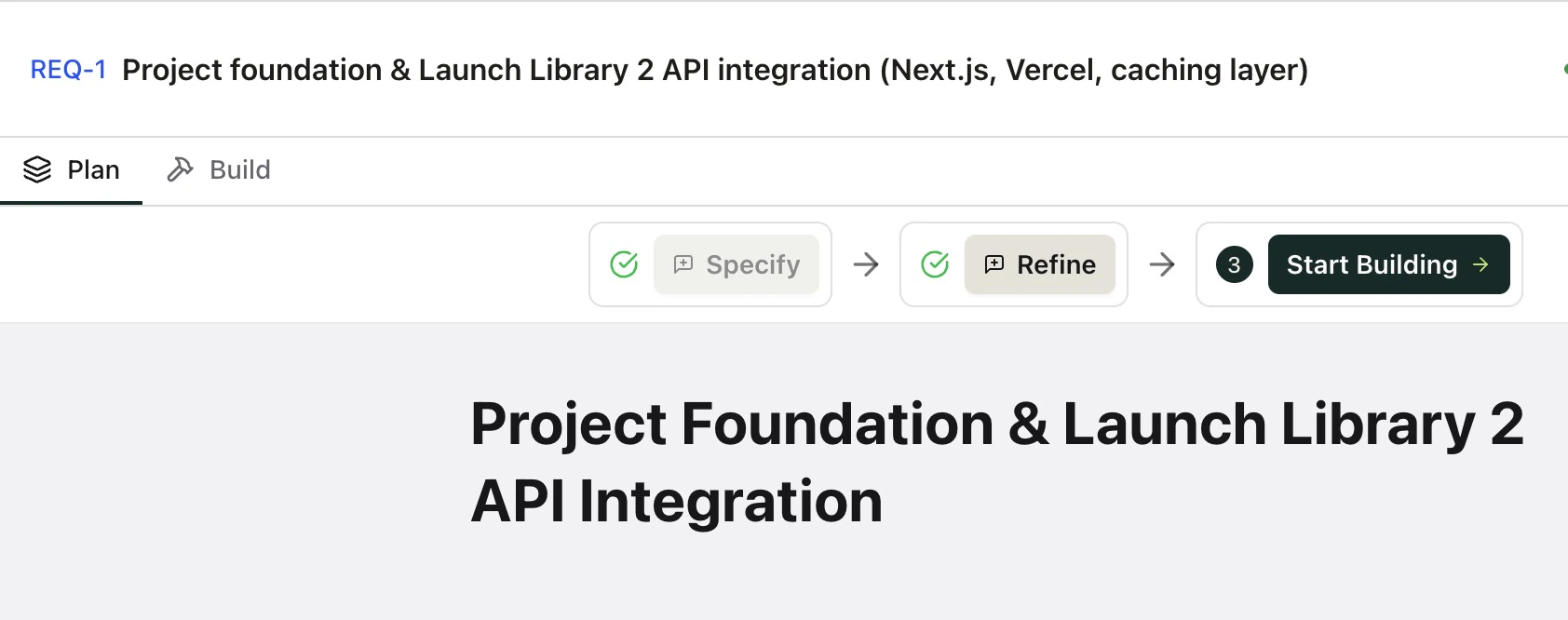
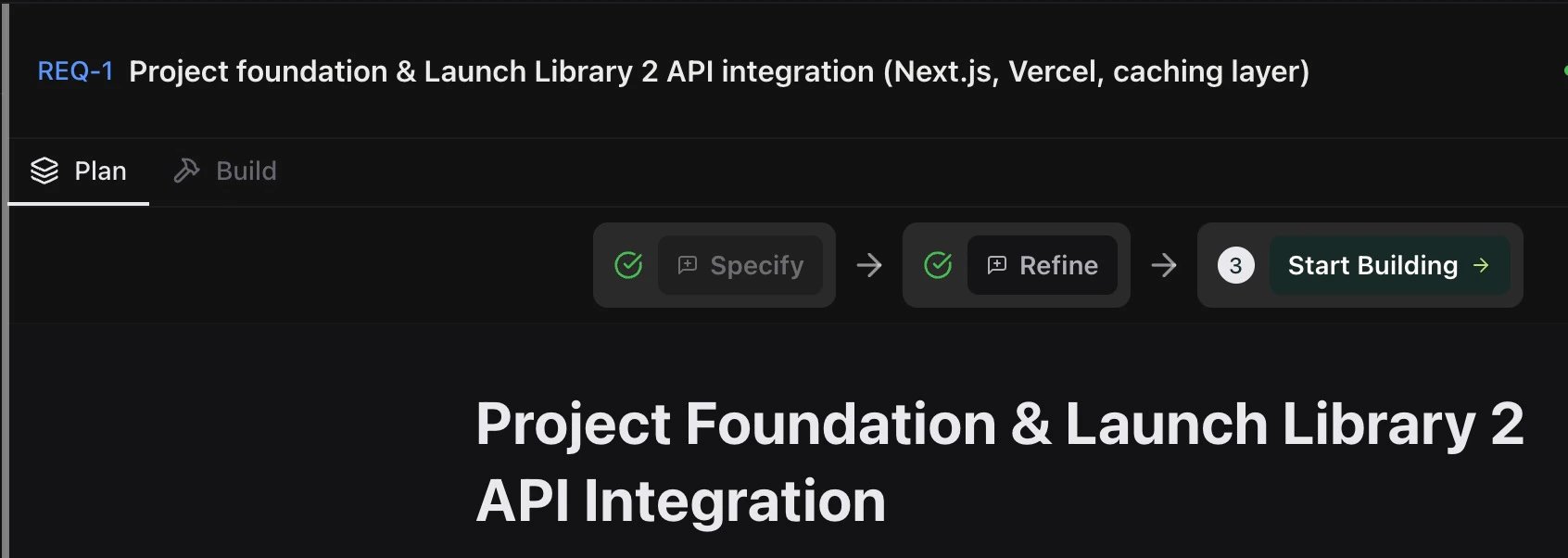
Time to Start Building - press the button!
6

Build it with your favorite AI coding tool

Now you’re ready to implement your tasks using your AI coding assistant!
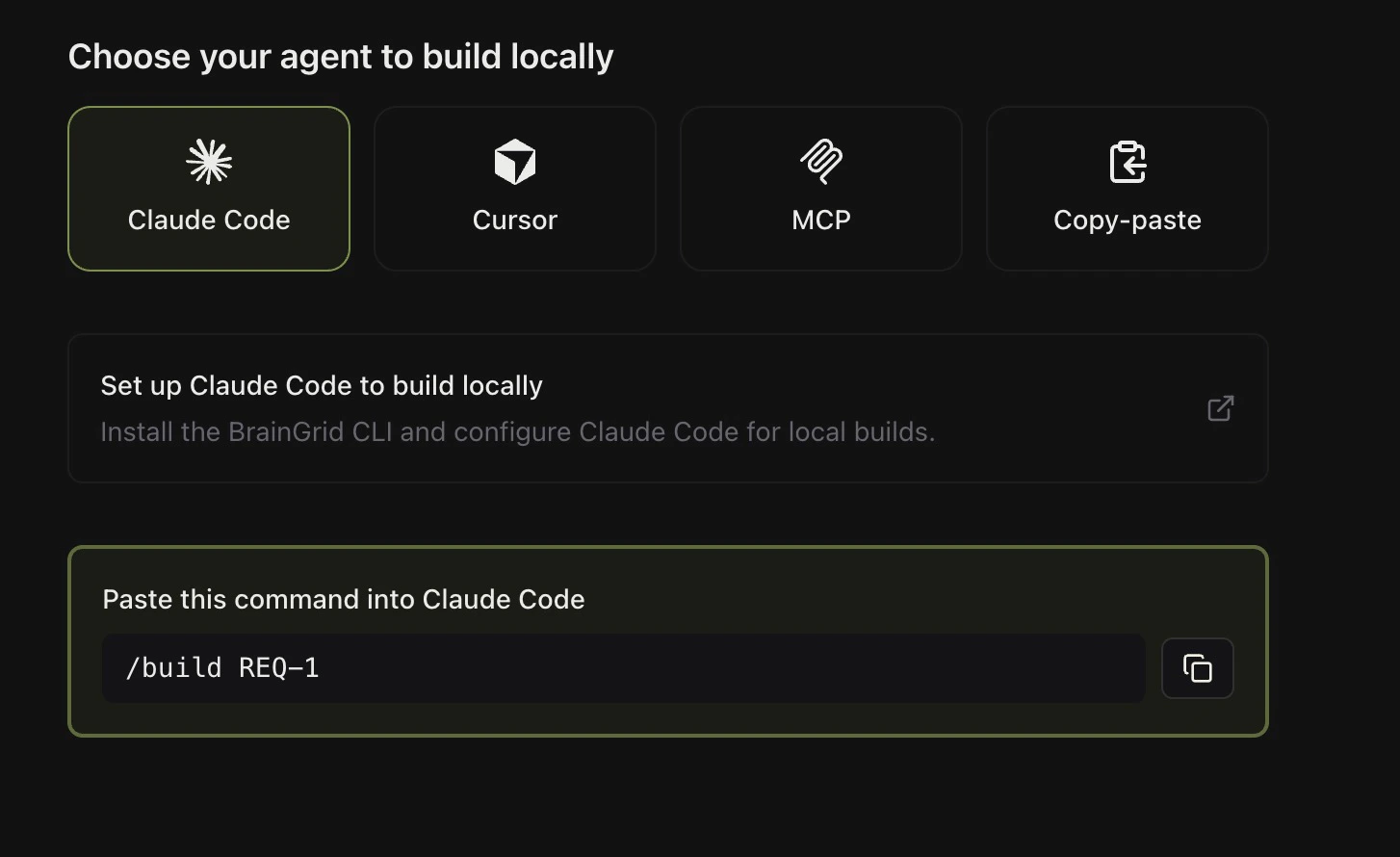
Instructions to build your requirement.
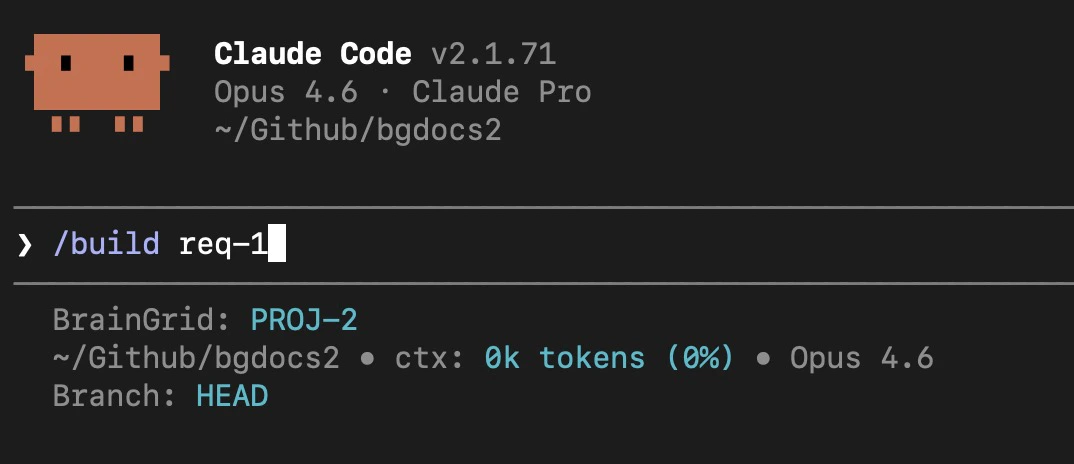
In your Agent, follow the instructions from BrainGrid:
Build instruction in Claude.
You Agent will connect with BrainGrid, read the EPIC and requirement, and begin building!
Congratulations! You’ve completed the quickstart. Now you can start building your product with BrainGrid!

Video Guides

Check out our complete Video Guides section for detailed walkthroughs of each step in the BrainGrid workflow.